Creating a Consignment Replenishment Order in Dynamics 365 Supply Chain Management
Introduction
Consignment inventory refers to stock that is physically stored in your warehouse but remains owned by the vendor until it is consumed. This arrangement allows businesses to reduce inventory carrying costs while maintaining product availability. In Dynamics 365 Supply Chain Management, consignment replenishment orders are used to track expected deliveries, register receipts, and manage vendor-owned inventory efficiently.
Step-by-step process
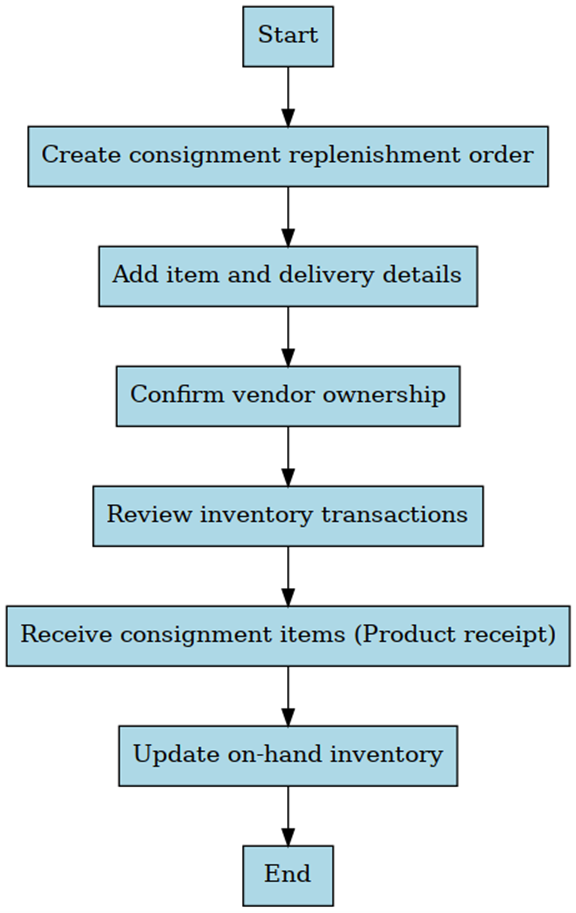
Step 1: Create the consignment replenishment order
Navigate to: Procurement and sourcing → Consignment → Consignment replenishment orders.
Click 'New' to create a new order. Select a vendor account that is registered as an inventory owner (e.g., US-104). Click 'OK' to generate the order header. Add a line by selecting 'Add line'. Enter an item number configured for consignment inventory (e.g., M9211CI), specify the quantity, and set the requested and confirmed delivery dates. To verify vendor ownership, expand 'Line details', go to the 'Inventory dimensions' tab, and refresh the page to see the 'Owner' field.
Step 2: Review inventory transactions
To check the transaction status, select 'Inventory → Transactions'. Locate the line and observe that the receipt status is set to 'Ordered'. This indicates that the items are expected but have not yet been received.
Step 3: Receive the consignment items
When the vendor delivers the goods, select 'Product receipt' on the order. Enter the external product receipt number (typically the vendor’s delivery note), specify the quantity to receive (partial receipts are allowed), and click 'OK'. The system will register the items as on-hand consignment inventory, still owned by the vendor.
Step 4: Check on-hand consignment inventory
To verify the updated stock, go to 'Inventory → On-hand' and select 'Overview'. You will see the received quantity listed as on-hand and owned by the vendor, while any remaining quantity will still be marked as 'Ordered'.
Conclusion
Consignment replenishment orders in Dynamics 365 Supply Chain Management provide a structured and efficient way to manage vendor-owned inventory. They help organizations maintain accurate inventory records, support planning processes, and reduce inventory holding costs.
Newsletter
YouTube Training Videos
- Procure to pay - An end-to-end process
- Order to cash process - An end-to-end process
- How to post vendor invoices in batch
- Accrual Schemes for Payable
- Quote to bill in Project Management and Accounting
- How to run master planning on Min/Max coverage code
- Embedded Power BI Analytics in Dynamics 365 F&O
- Configuring IS with periodic trend in Financial reports
- Reversing a purchase invoice in SAP S4 Hana and D365 F&O
Services Provided
- D365 F&O Implementation / Support
- D365 F&O Customizations
- CRM Implementation
- Helpdesk System Implementation
- Website Implementation
- Odoo ERP Implementation
- LMS Implementation
- Survey Implementation
- Power BI / Apps Implementation